> ## Documentation Index
> Fetch the complete documentation index at: https://docs.comify.io/llms.txt
> Use this file to discover all available pages before exploring further.
# Lists
> Build a static, point-in-time audience from a rule snapshot or a CSV upload.
A **List** is a static audience: a fixed set of contacts captured at a point in time. Once created, its membership doesn't change on its own — you build a new list (or re-upload a CSV) rather than watch it drift.
Looking for a dynamic audience that re-qualifies automatically? See [Segments](/audience/segments). For a side-by-side comparison, see [Create an Audience](/audience/overview).
## Create a list
From **Template Manager → Audience List**, click **+ New audience → List**. You get two ways to build it: **From a rule** or **Upload CSV**.
 ## From a rule
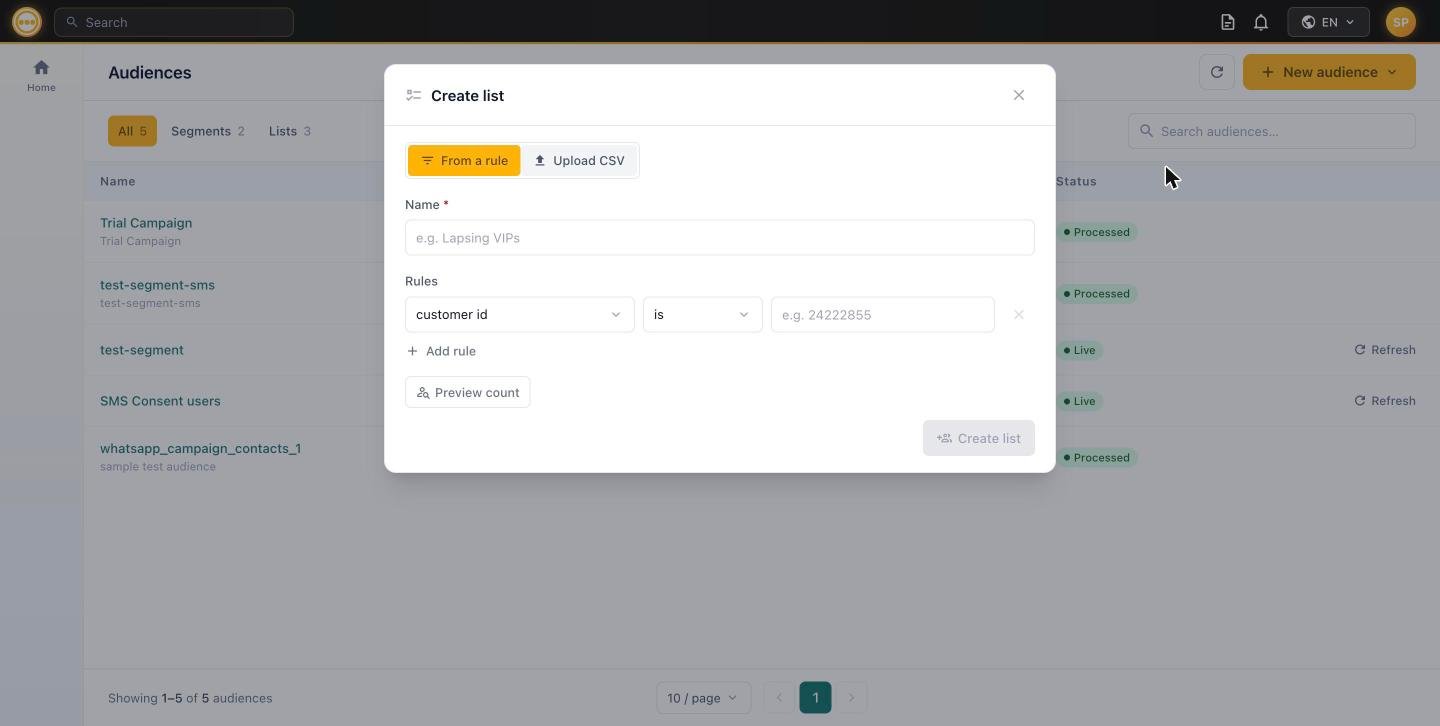
This uses the exact same **Name** + **Rules** builder as a [Segment](/audience/segments) — the same fields, the same operators, the same **+ Add rule** and **Preview count** behavior. See the [Segments rule reference](/audience/segments#rule-reference) for the full field and operator inventory.
The difference is what happens after you click **Create list**: Comify captures a **one-time snapshot** of everyone who currently matches your rules. New contacts that later start matching the rule are **not** added automatically, and contacts that stop matching are **not** removed — the list stays exactly as it was captured.
Use a rule-built list when you want the precision of the rule builder but need the audience to hold still — for example, a promotional send where you don't want the recipient set shifting while the campaign is in review or scheduled.
## Upload CSV
Switch to the **Upload CSV** tab to import contacts directly from a file.
## From a rule
This uses the exact same **Name** + **Rules** builder as a [Segment](/audience/segments) — the same fields, the same operators, the same **+ Add rule** and **Preview count** behavior. See the [Segments rule reference](/audience/segments#rule-reference) for the full field and operator inventory.
The difference is what happens after you click **Create list**: Comify captures a **one-time snapshot** of everyone who currently matches your rules. New contacts that later start matching the rule are **not** added automatically, and contacts that stop matching are **not** removed — the list stays exactly as it was captured.
Use a rule-built list when you want the precision of the rule builder but need the audience to hold still — for example, a promotional send where you don't want the recipient set shifting while the campaign is in review or scheduled.
## Upload CSV
Switch to the **Upload CSV** tab to import contacts directly from a file.
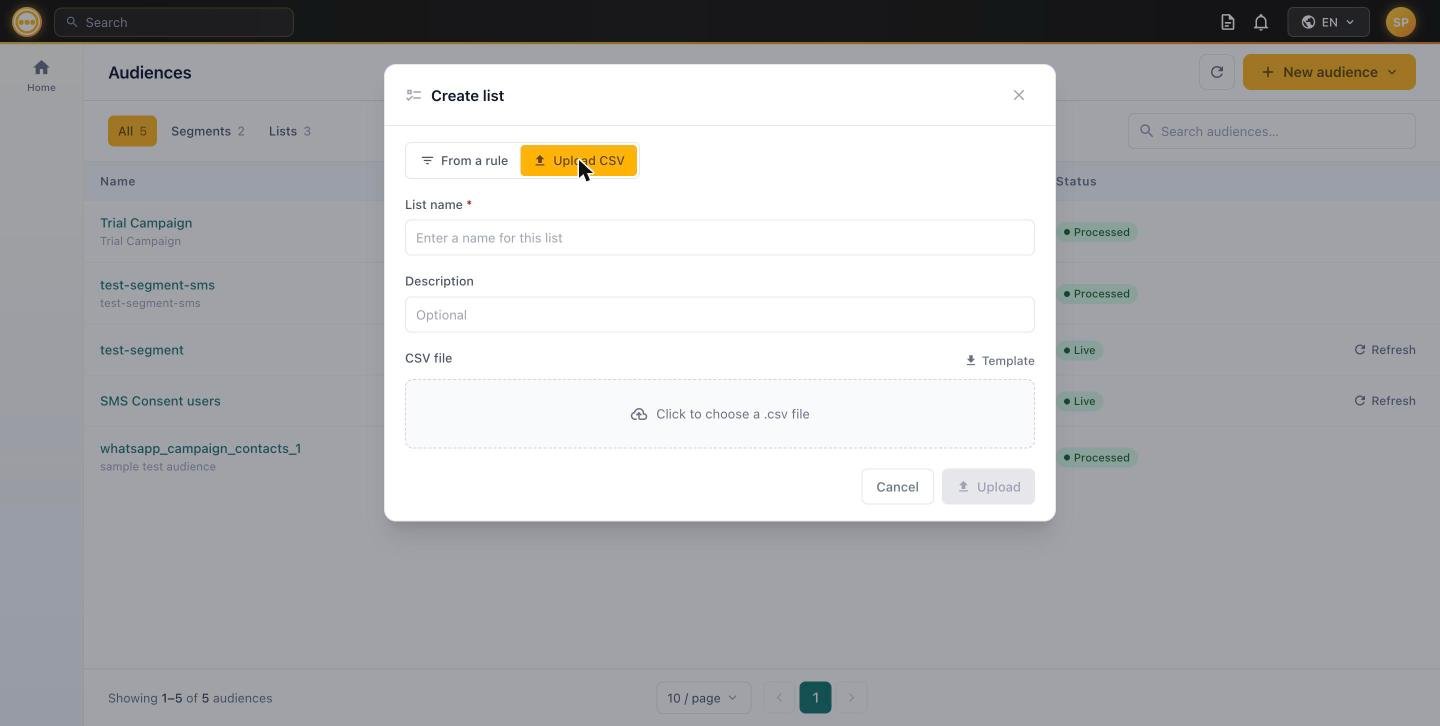 Enter a **List name** and an optional **Description**.
Click **Template** to download a CSV pre-filled with the expected column headers, so your file maps cleanly to Comify's fields without a manual re-mapping step.
Click the dropzone to choose a `.csv` file, then click **Upload**.
Uploaded lists appear in the Audiences page as **pending** while rows are validated, then flip to **Processed** once ready to use.
## Lists are not editable after creation
This is the key behavioral difference from Segments: **once a list is created, it cannot be reopened or edited — regardless of whether it was built from a rule or uploaded as a CSV.** Clicking a list's row in the Audiences list does nothing (unlike a segment's row, which reopens the rule builder). To change who's in a list, create a new one or upload a fresh CSV.
There's also no **Refresh** action on list rows — that control only appears on Live segments, since a list's membership is fixed by design.
## Using a list in a campaign
Lists are selectable from the [Audience step](/campaigns/audience) of any campaign — Email, [SMS](/campaigns/sms/audience), or [WhatsApp](/campaigns/whatsapp/audience) — under **Select existing → Campaign audiences**.
Lists are fixed, so the audience a campaign sends to is exactly what was captured when the list was created or last uploaded — no re-qualification happens at send time.
## Next steps
* Need membership to stay current automatically? See [Segments](/audience/segments).
* [Create an Audience](/audience/overview) — Segment vs. List comparison.
* [Create a campaign](/campaigns/overview) using this list.
Enter a **List name** and an optional **Description**.
Click **Template** to download a CSV pre-filled with the expected column headers, so your file maps cleanly to Comify's fields without a manual re-mapping step.
Click the dropzone to choose a `.csv` file, then click **Upload**.
Uploaded lists appear in the Audiences page as **pending** while rows are validated, then flip to **Processed** once ready to use.
## Lists are not editable after creation
This is the key behavioral difference from Segments: **once a list is created, it cannot be reopened or edited — regardless of whether it was built from a rule or uploaded as a CSV.** Clicking a list's row in the Audiences list does nothing (unlike a segment's row, which reopens the rule builder). To change who's in a list, create a new one or upload a fresh CSV.
There's also no **Refresh** action on list rows — that control only appears on Live segments, since a list's membership is fixed by design.
## Using a list in a campaign
Lists are selectable from the [Audience step](/campaigns/audience) of any campaign — Email, [SMS](/campaigns/sms/audience), or [WhatsApp](/campaigns/whatsapp/audience) — under **Select existing → Campaign audiences**.
Lists are fixed, so the audience a campaign sends to is exactly what was captured when the list was created or last uploaded — no re-qualification happens at send time.
## Next steps
* Need membership to stay current automatically? See [Segments](/audience/segments).
* [Create an Audience](/audience/overview) — Segment vs. List comparison.
* [Create a campaign](/campaigns/overview) using this list.