> ## Documentation Index
> Fetch the complete documentation index at: https://docs.comify.io/llms.txt
> Use this file to discover all available pages before exploring further.
# Create an Audience
> Build a List or a Segment in the Comify dashboard to target the right contacts in your campaigns.
An **audience** is who a [campaign](/campaigns/overview) sends to. Comify supports two audience types — pick the one that matches how "current" you need the membership to be.
This is a dashboard walkthrough. Screens are captured from **cloud.comify.io** → **Template Manager → Audience List**.
## Segment vs. List
**Dynamic.** Built from rules only. Membership is re-evaluated automatically as customer data changes — a contact can enter or leave a segment on its own, with no re-upload needed. [Full guide →](/audience/segments)
**Static.** A fixed set of contacts, captured at a point in time — built either **from a rule** (snapshotted once) or by **uploading a CSV**. Membership only changes when you re-run or re-upload it. [Full guide →](/audience/lists)
Use a **Segment** for anything you want to stay current automatically — "customers who haven't ordered in 30 days," "WhatsApp-consented users." Use a **List** for a one-off send — an event guest list, an imported CSV of leads, or a rule-built snapshot you don't want to shift under you mid-campaign.
## Open Audience List
From the sidebar, open **Template Manager → Audience List**. This is the unified **Audiences** page — every Segment and List you've created, with tabs to filter by type.
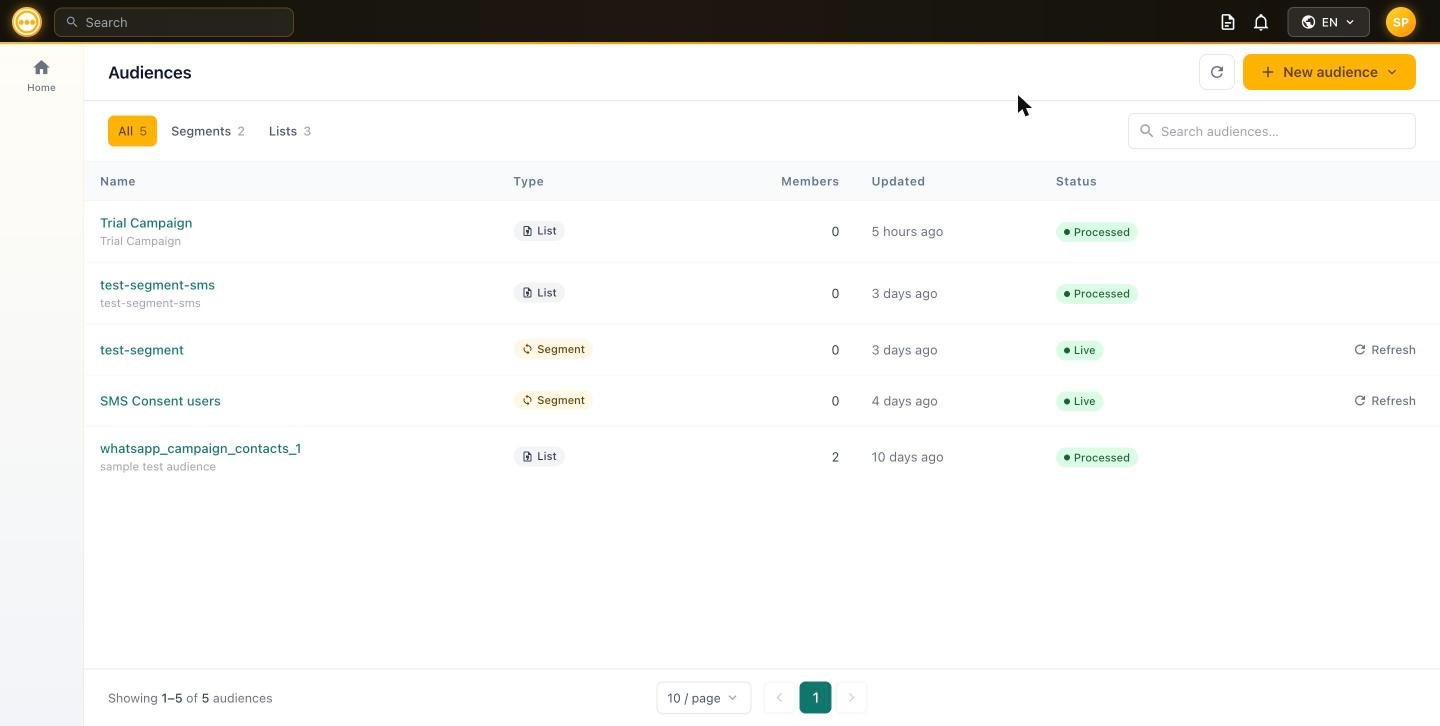 Each row shows:
| Column | Description |
| ----------- | ----------------------------------------------- |
| **Name** | The audience's name (and description, if set). |
| **Type** | `Segment` or `List`. |
| **Members** | Current member count. |
| **Updated** | When it was last created, edited, or refreshed. |
| **Status** | `Live` (segments) or `Processed` (lists). |
Live segments show a **Refresh** action in the row — use it to re-qualify membership on demand instead of waiting for the next automatic evaluation. Lists don't have this action, since their membership is fixed.
Click **+ New audience** to open the type picker:
Each row shows:
| Column | Description |
| ----------- | ----------------------------------------------- |
| **Name** | The audience's name (and description, if set). |
| **Type** | `Segment` or `List`. |
| **Members** | Current member count. |
| **Updated** | When it was last created, edited, or refreshed. |
| **Status** | `Live` (segments) or `Processed` (lists). |
Live segments show a **Refresh** action in the row — use it to re-qualify membership on demand instead of waiting for the next automatic evaluation. Lists don't have this action, since their membership is fixed.
Click **+ New audience** to open the type picker:
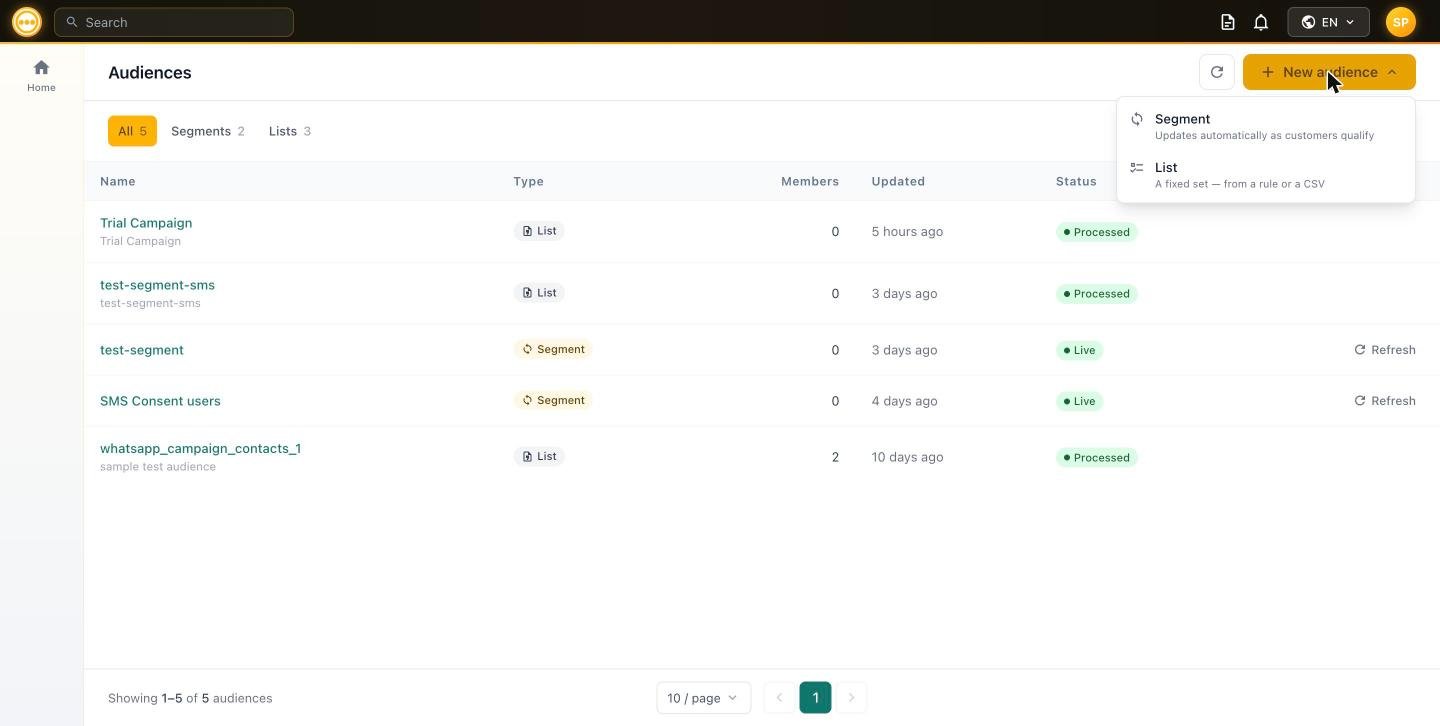 * Choosing **Segment** opens the rule builder covered in [Segments](/audience/segments).
* Choosing **List** opens the from-a-rule / upload-CSV builder covered in [Lists](/audience/lists).
## Row behavior at a glance
| | Segment | List (from a rule) | List (CSV upload) |
| ------------------------------ | ------------------------------------------------------- | ------------------ | ------------------- |
| **Click the row to reopen it** | Yes — reopens the rule builder, pre-filled and editable | No | No |
| **Membership after creation** | Re-evaluated automatically | Fixed at creation | Fixed at upload |
| **Manual re-qualify** | **Refresh** action | Not available | Not available |
| **To change membership** | Edit the rules directly | Create a new list | Re-upload a new CSV |
## Using an audience in a campaign
Once created, both Segments and Lists are selectable from the [Audience step](/campaigns/audience) of any campaign — Email, [SMS](/campaigns/sms/audience), or [WhatsApp](/campaigns/whatsapp/audience) — under **Select existing → Campaign audiences** (Lists) or **Comify segment** (Segments).
Segments **re-qualify at send time** — the member count you see when building a campaign is an estimate. Lists are fixed, so the audience a campaign sends to is exactly what was captured when the list was created or last uploaded.
## Next steps
Full rule-builder reference: every field, operator, and how live re-qualification behaves.
Building a static list from a rule snapshot or a CSV upload, and the CSV template.
* Send to this audience: [Create a campaign](/campaigns/overview)
* Explore channel-specific sends: [SMS Campaigns](/campaigns/sms/audience) · [WhatsApp Campaigns](/campaigns/whatsapp/audience)
* Choosing **Segment** opens the rule builder covered in [Segments](/audience/segments).
* Choosing **List** opens the from-a-rule / upload-CSV builder covered in [Lists](/audience/lists).
## Row behavior at a glance
| | Segment | List (from a rule) | List (CSV upload) |
| ------------------------------ | ------------------------------------------------------- | ------------------ | ------------------- |
| **Click the row to reopen it** | Yes — reopens the rule builder, pre-filled and editable | No | No |
| **Membership after creation** | Re-evaluated automatically | Fixed at creation | Fixed at upload |
| **Manual re-qualify** | **Refresh** action | Not available | Not available |
| **To change membership** | Edit the rules directly | Create a new list | Re-upload a new CSV |
## Using an audience in a campaign
Once created, both Segments and Lists are selectable from the [Audience step](/campaigns/audience) of any campaign — Email, [SMS](/campaigns/sms/audience), or [WhatsApp](/campaigns/whatsapp/audience) — under **Select existing → Campaign audiences** (Lists) or **Comify segment** (Segments).
Segments **re-qualify at send time** — the member count you see when building a campaign is an estimate. Lists are fixed, so the audience a campaign sends to is exactly what was captured when the list was created or last uploaded.
## Next steps
Full rule-builder reference: every field, operator, and how live re-qualification behaves.
Building a static list from a rule snapshot or a CSV upload, and the CSV template.
* Send to this audience: [Create a campaign](/campaigns/overview)
* Explore channel-specific sends: [SMS Campaigns](/campaigns/sms/audience) · [WhatsApp Campaigns](/campaigns/whatsapp/audience)