> ## Documentation Index
> Fetch the complete documentation index at: https://docs.comify.io/llms.txt
> Use this file to discover all available pages before exploring further.
# Segments
> Build a dynamic audience that re-qualifies automatically as customer data changes.
A **Segment** is a dynamic audience: a set of rules that Comify evaluates against your live customer data. Contacts enter or leave a segment on their own — nothing to re-upload, nothing to re-run.
Looking for the static, point-in-time option instead? See [Lists](/audience/lists). For a side-by-side comparison, see [Create an Audience](/audience/overview).
## Create a segment
From **Template Manager → Audience List**, click **+ New audience → Segment**.
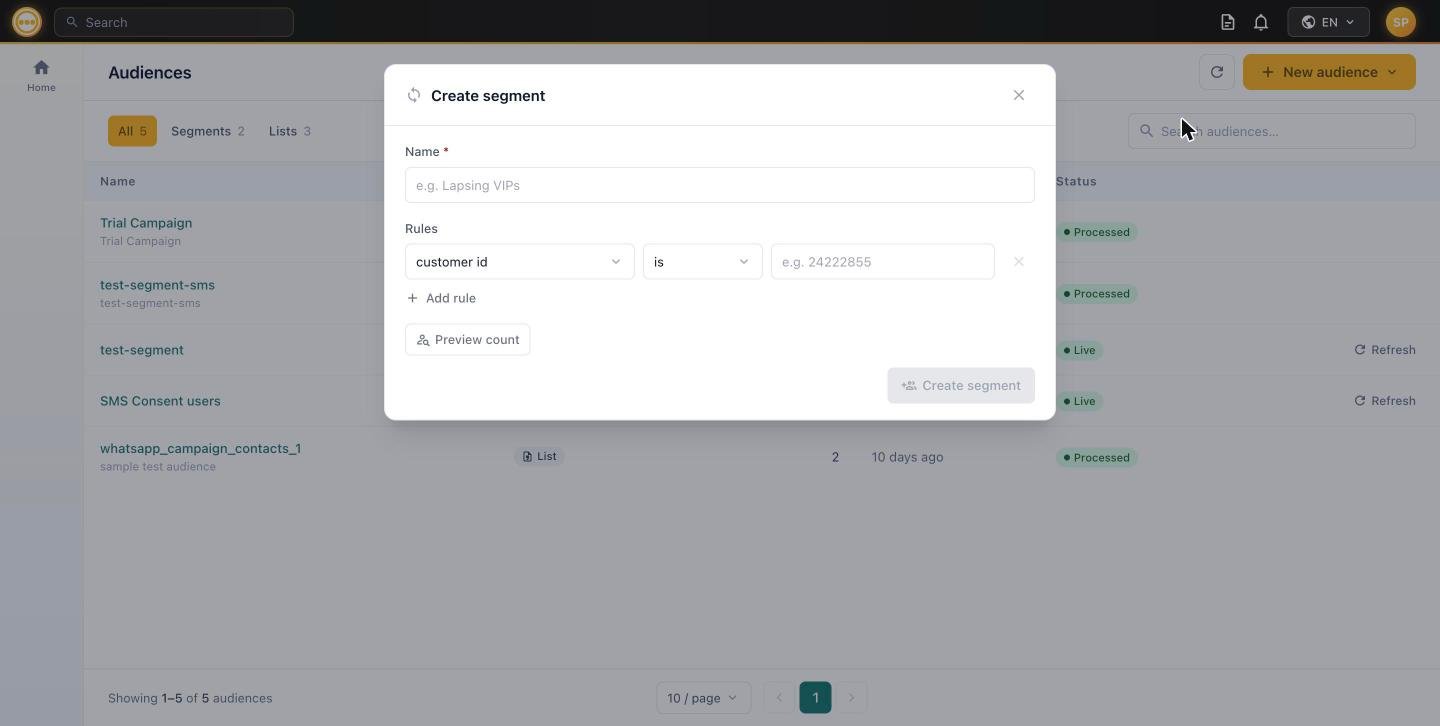 Give it a clear, descriptive name (e.g. `WhatsApp opted-in`, `Lapsing VIPs`).
Each rule has three parts: a **field**, an **operator**, and a **value**. The operator and value input adapt automatically based on the field's data type — see the [rule reference](#rule-reference) below.
Click **+ Add rule** to add more conditions. Rules are combined with **AND** — a contact must match every rule to be included.
Click **Preview count** to see how many current contacts match your rules before saving. This runs a live query against your customer data, so the number reflects who would qualify right now.
Click **Create segment**. It's saved as **Live** and starts evaluating membership automatically — no further action needed to keep it current.
## Rule reference
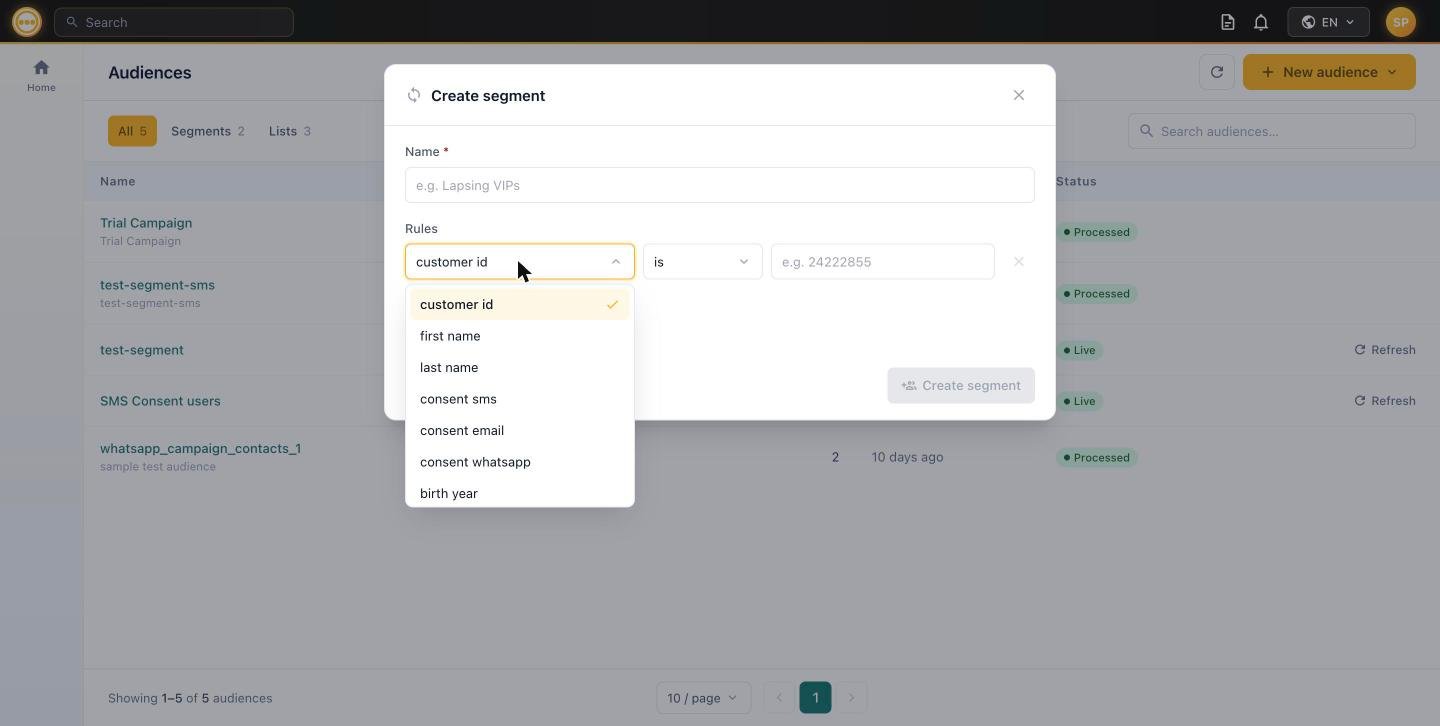
Every rule is built from a **field**, an **operator**, and (depending on the operator) a **value**. The field determines which operators are available.
### Fields
| Field | Type |
| ------------------ | ------- |
| `customer id` | Text |
| `first name` | Text |
| `last name` | Text |
| `email` | Text |
| `phone` | Text |
| `gender` | Text |
| `consent email` | Boolean |
| `consent sms` | Boolean |
| `consent whatsapp` | Boolean |
| `birth year` | Number |
Give it a clear, descriptive name (e.g. `WhatsApp opted-in`, `Lapsing VIPs`).
Each rule has three parts: a **field**, an **operator**, and a **value**. The operator and value input adapt automatically based on the field's data type — see the [rule reference](#rule-reference) below.
Click **+ Add rule** to add more conditions. Rules are combined with **AND** — a contact must match every rule to be included.
Click **Preview count** to see how many current contacts match your rules before saving. This runs a live query against your customer data, so the number reflects who would qualify right now.
Click **Create segment**. It's saved as **Live** and starts evaluating membership automatically — no further action needed to keep it current.
## Rule reference
Every rule is built from a **field**, an **operator**, and (depending on the operator) a **value**. The field determines which operators are available.
### Fields
| Field | Type |
| ------------------ | ------- |
| `customer id` | Text |
| `first name` | Text |
| `last name` | Text |
| `email` | Text |
| `phone` | Text |
| `gender` | Text |
| `consent email` | Boolean |
| `consent sms` | Boolean |
| `consent whatsapp` | Boolean |
| `birth year` | Number |
 ### Operators by field type
| Operator | Behavior |
| ------------- | --------------------------------------- |
| `is` | Exact match |
| `is not` | Excludes an exact match |
| `in` | Matches any value in a list you provide |
| `contains` | Substring match |
| `starts with` | Prefix match |
| `ends with` | Suffix match |
| `exists` | Field is populated (non-empty) |
| Operator | Behavior |
| ---------- | ---------------------------------------------------------- |
| `is` | Matches a **true**/**false** value, chosen from a dropdown |
| `exists` | Field has a value set at all |
| `is empty` | Field has no value set |
Use consent fields to build compliant sends — e.g. a segment with `consent whatsapp` **is** **true** for a WhatsApp campaign audience.
| Operator | Behavior |
| --------- | --------------------------------------------- |
| `is` | Exact match |
| `is not` | Excludes an exact match |
| `>` | Greater than |
| `≥` | Greater than or equal to |
| `<` | Less than |
| `≤` | Less than or equal to |
| `between` | Range — shows two inputs, **min** and **max** |
Multiple rules are always combined with **AND**. There's no OR / "any of these rules" mode — to approximate an OR condition on the same field, use the `in` operator on a Text field.
## Editing a segment
Unlike Lists, Segments stay editable indefinitely. Click any segment's row in the Audiences list to reopen this same rule builder, pre-filled with its current rules — adjust them and save, and the segment re-evaluates against the new criteria going forward.
## Refreshing membership
Segment membership updates automatically, but you don't have to wait for the next automatic pass. From the Audiences list, click **Refresh** on any Live segment's row to re-qualify its membership on demand.
## Using a segment in a campaign
Segments are selectable from the [Audience step](/campaigns/audience) of any campaign — Email, [SMS](/campaigns/sms/audience), or [WhatsApp](/campaigns/whatsapp/audience) — under **Select existing → Comify segment**.
Segments **re-qualify at send time**. The member count shown while building a campaign is an estimate — the actual recipient list is computed fresh when the campaign sends.
## Next steps
* Need a fixed, point-in-time audience instead? See [Lists](/audience/lists).
* [Create an Audience](/audience/overview) — Segment vs. List comparison.
* [Create a campaign](/campaigns/overview) using this segment.
### Operators by field type
| Operator | Behavior |
| ------------- | --------------------------------------- |
| `is` | Exact match |
| `is not` | Excludes an exact match |
| `in` | Matches any value in a list you provide |
| `contains` | Substring match |
| `starts with` | Prefix match |
| `ends with` | Suffix match |
| `exists` | Field is populated (non-empty) |
| Operator | Behavior |
| ---------- | ---------------------------------------------------------- |
| `is` | Matches a **true**/**false** value, chosen from a dropdown |
| `exists` | Field has a value set at all |
| `is empty` | Field has no value set |
Use consent fields to build compliant sends — e.g. a segment with `consent whatsapp` **is** **true** for a WhatsApp campaign audience.
| Operator | Behavior |
| --------- | --------------------------------------------- |
| `is` | Exact match |
| `is not` | Excludes an exact match |
| `>` | Greater than |
| `≥` | Greater than or equal to |
| `<` | Less than |
| `≤` | Less than or equal to |
| `between` | Range — shows two inputs, **min** and **max** |
Multiple rules are always combined with **AND**. There's no OR / "any of these rules" mode — to approximate an OR condition on the same field, use the `in` operator on a Text field.
## Editing a segment
Unlike Lists, Segments stay editable indefinitely. Click any segment's row in the Audiences list to reopen this same rule builder, pre-filled with its current rules — adjust them and save, and the segment re-evaluates against the new criteria going forward.
## Refreshing membership
Segment membership updates automatically, but you don't have to wait for the next automatic pass. From the Audiences list, click **Refresh** on any Live segment's row to re-qualify its membership on demand.
## Using a segment in a campaign
Segments are selectable from the [Audience step](/campaigns/audience) of any campaign — Email, [SMS](/campaigns/sms/audience), or [WhatsApp](/campaigns/whatsapp/audience) — under **Select existing → Comify segment**.
Segments **re-qualify at send time**. The member count shown while building a campaign is an estimate — the actual recipient list is computed fresh when the campaign sends.
## Next steps
* Need a fixed, point-in-time audience instead? See [Lists](/audience/lists).
* [Create an Audience](/audience/overview) — Segment vs. List comparison.
* [Create a campaign](/campaigns/overview) using this segment.