> ## Documentation Index
> Fetch the complete documentation index at: https://docs.comify.io/llms.txt
> Use this file to discover all available pages before exploring further.
# Content
> Choose your email template, map variables, test your email, and configure UTM tracking.
The Content step is where you define what your campaign email will look like. This includes selecting a template, mapping dynamic variables, sending a test, and setting up UTM parameters for link tracking.
## 1. Select a Template
Campaigns use templates created in the **Email Templates** workspace. Click **Choose template** to open the template picker.
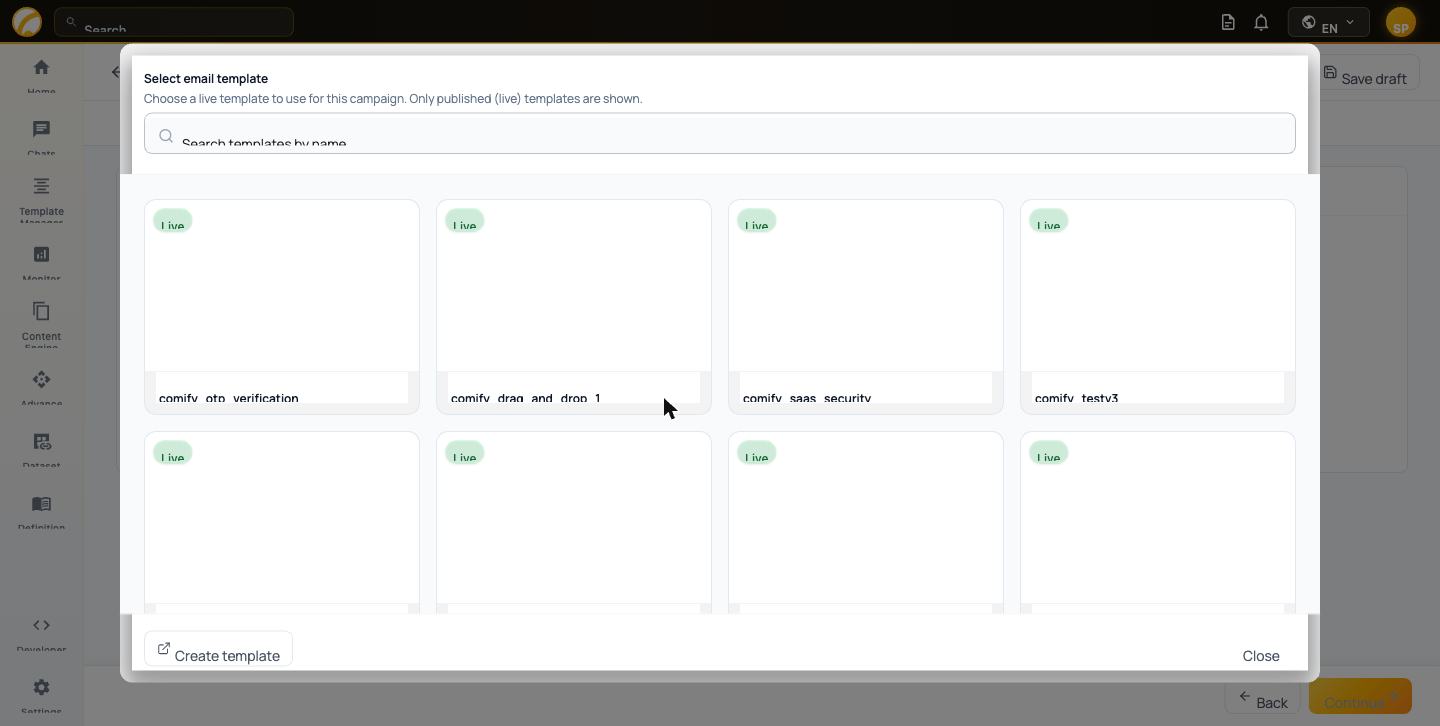
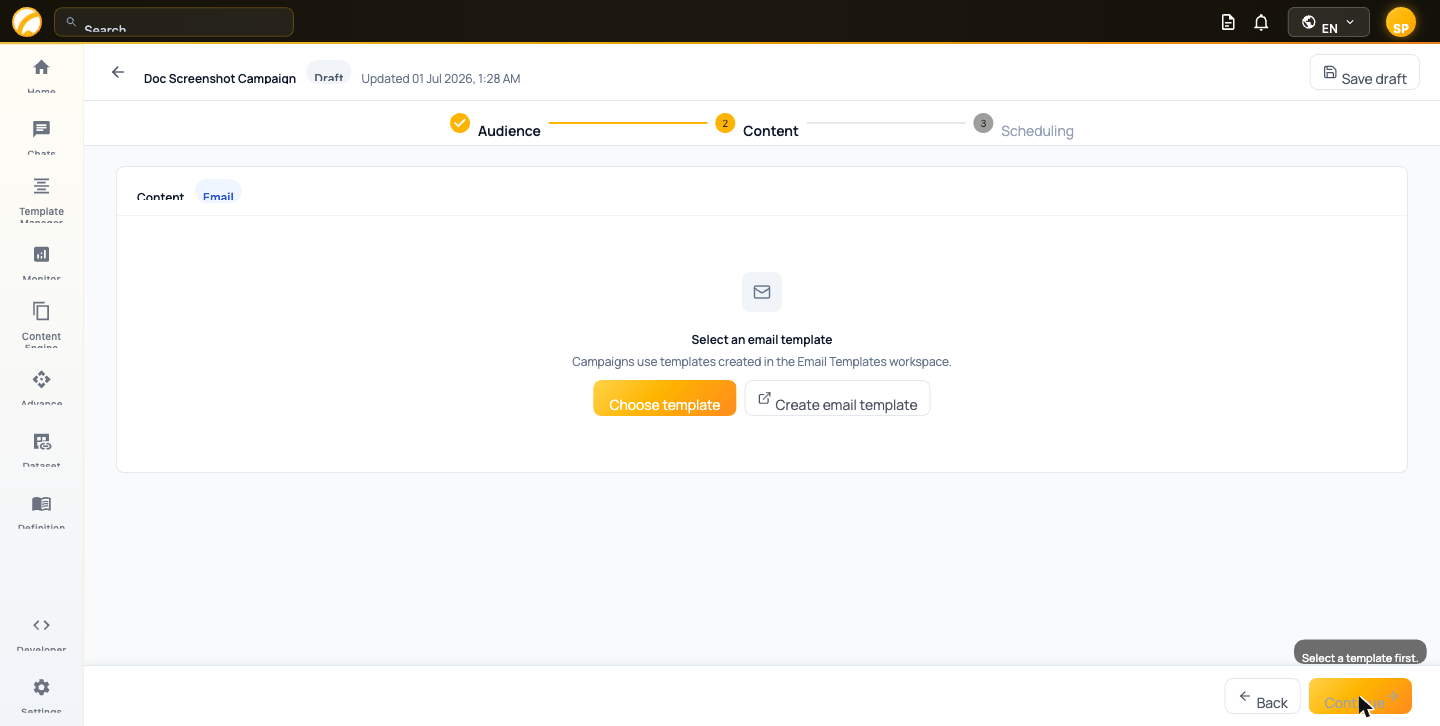 Only published (live) templates are shown. Search by name or scroll to find the right one, then click to select it.
 If you haven't created a template yet, click **Create email template** to open the template builder in a new tab.
## 2. Variable Mapping
Once a template is selected, Comify detects any dynamic variables it contains (e.g. `{{name}}`, `{{price}}`) and lists them in the **Variable Mapping** table.
If you haven't created a template yet, click **Create email template** to open the template builder in a new tab.
## 2. Variable Mapping
Once a template is selected, Comify detects any dynamic variables it contains (e.g. `{{name}}`, `{{price}}`) and lists them in the **Variable Mapping** table.
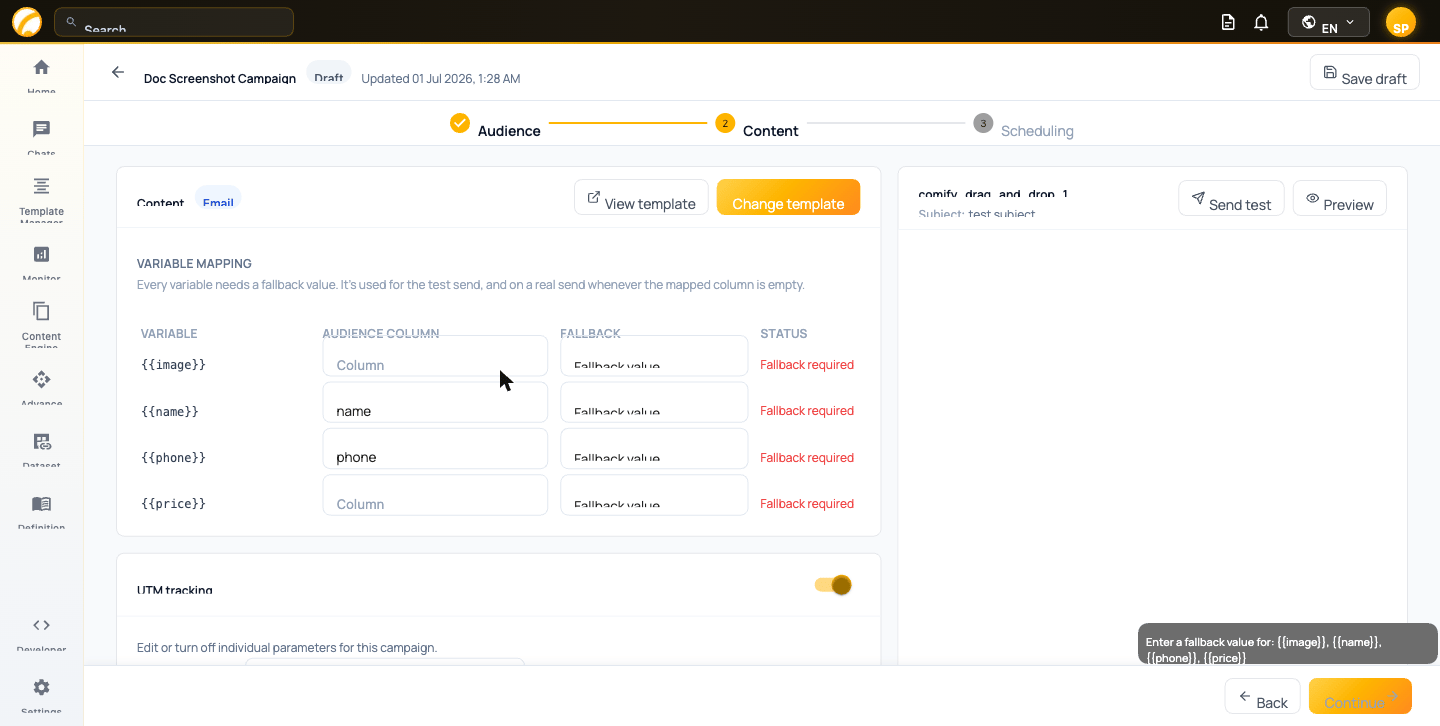 For each variable, set:
| Column | Description |
| ------------------- | -------------------------------------------------------------- |
| **Variable** | The placeholder used in the template |
| **Audience Column** | The CSV column whose value replaces this variable at send time |
| **Fallback** | The value used if the audience column is empty for a contact |
| **Status** | Shows **Fallback required** until a fallback value is entered |
Every variable must have a fallback value. The campaign cannot proceed until all variables show a resolved status. The fallback is also used for test sends.
## 3. Send a Test Email
Before sending to your full audience, click **Send test** in the top-right corner to preview how the campaign looks in a real inbox. The test uses your fallback values so you can verify rendering and layout.
Test emails are sent immediately, regardless of your campaign's scheduled send time. Use them to catch formatting issues or broken links early.
## 4. UTM Tracking
UTM tracking is enabled by default. Scroll down to the **UTM tracking** section to review or edit the parameters that will be appended to all links in your email.
For each variable, set:
| Column | Description |
| ------------------- | -------------------------------------------------------------- |
| **Variable** | The placeholder used in the template |
| **Audience Column** | The CSV column whose value replaces this variable at send time |
| **Fallback** | The value used if the audience column is empty for a contact |
| **Status** | Shows **Fallback required** until a fallback value is entered |
Every variable must have a fallback value. The campaign cannot proceed until all variables show a resolved status. The fallback is also used for test sends.
## 3. Send a Test Email
Before sending to your full audience, click **Send test** in the top-right corner to preview how the campaign looks in a real inbox. The test uses your fallback values so you can verify rendering and layout.
Test emails are sent immediately, regardless of your campaign's scheduled send time. Use them to catch formatting issues or broken links early.
## 4. UTM Tracking
UTM tracking is enabled by default. Scroll down to the **UTM tracking** section to review or edit the parameters that will be appended to all links in your email.
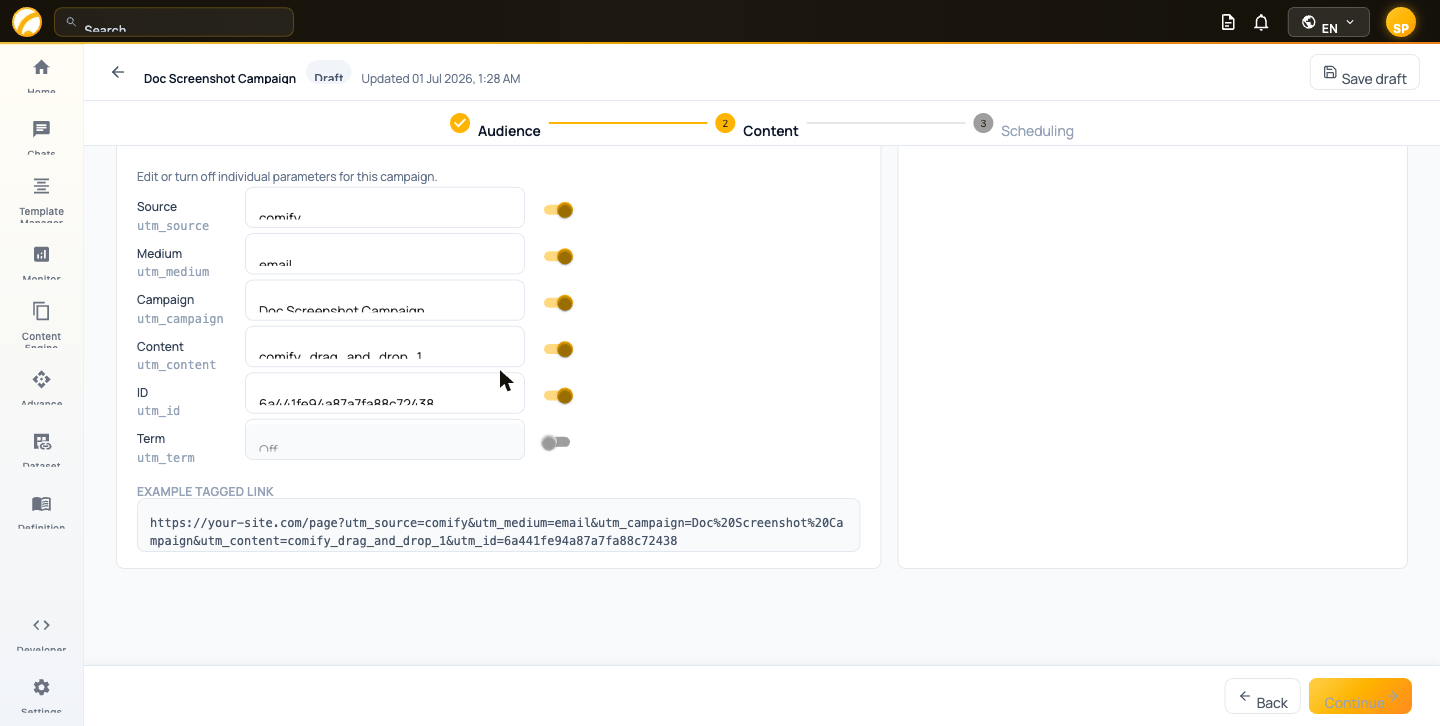 | Parameter | Description | Default |
| ----------------------------- | ------------------------------------- | ------------------ |
| **Source** (`utm_source`) | Identifies the traffic source | `comify` |
| **Medium** (`utm_medium`) | The marketing medium | `email` |
| **Campaign** (`utm_campaign`) | The specific campaign name | Your campaign name |
| **Content** (`utm_content`) | Differentiates links within the email | Template name |
| **ID** (`utm_id`) | Unique campaign identifier | Auto-generated |
| **Term** (`utm_term`) | Keyword term (optional) | Off by default |
Toggle individual parameters on or off as needed. An **Example tagged link** is shown at the bottom so you can verify the full URL before sending.
UTM parameters are strongly recommended if you're tracking campaign ROI through Google Analytics or another web analytics platform.
## Next Step
Once your template is selected, all variables have fallbacks, and UTM tags look right, click **Continue** to move to [Scheduling](/campaigns/scheduling).
| Parameter | Description | Default |
| ----------------------------- | ------------------------------------- | ------------------ |
| **Source** (`utm_source`) | Identifies the traffic source | `comify` |
| **Medium** (`utm_medium`) | The marketing medium | `email` |
| **Campaign** (`utm_campaign`) | The specific campaign name | Your campaign name |
| **Content** (`utm_content`) | Differentiates links within the email | Template name |
| **ID** (`utm_id`) | Unique campaign identifier | Auto-generated |
| **Term** (`utm_term`) | Keyword term (optional) | Off by default |
Toggle individual parameters on or off as needed. An **Example tagged link** is shown at the bottom so you can verify the full URL before sending.
UTM parameters are strongly recommended if you're tracking campaign ROI through Google Analytics or another web analytics platform.
## Next Step
Once your template is selected, all variables have fallbacks, and UTM tags look right, click **Continue** to move to [Scheduling](/campaigns/scheduling).