> ## Documentation Index
> Fetch the complete documentation index at: https://docs.comify.io/llms.txt
> Use this file to discover all available pages before exploring further.
# Content
> Choose your SMS template, map variables, test your message, and configure UTM tracking.
The Content step is where you define what your SMS will say. This includes selecting a template, mapping dynamic variables, sending a test, and setting up UTM parameters for link tracking.
## 1. Select a template
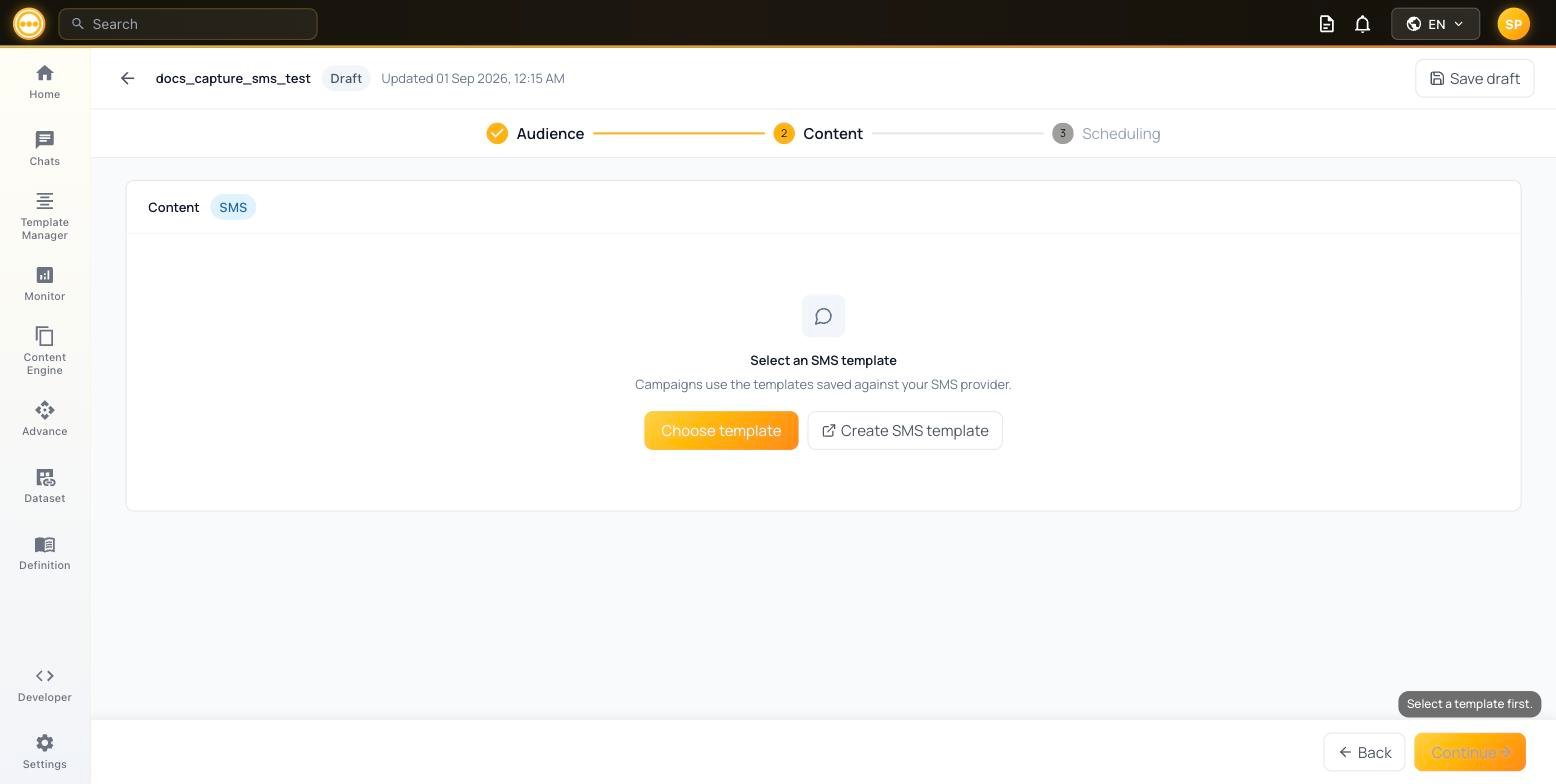
Click **Choose template** to pick a **published/live** [SMS template](/platform/create_sms_template), or **Create SMS template** to open the template builder in a new tab.
 ## 2. Variable mapping
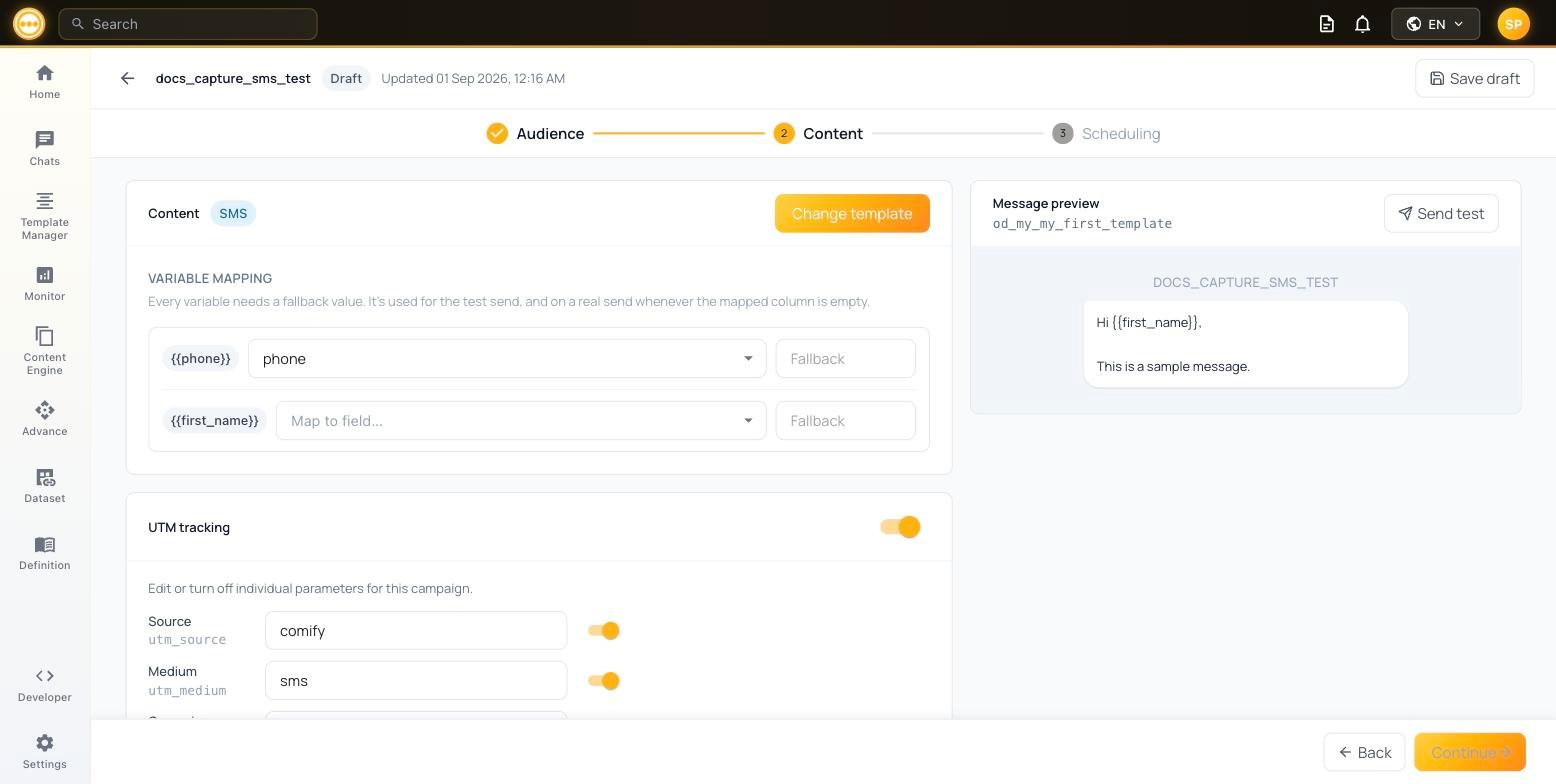
Once a template is selected, every variable it contains (e.g. `{{phone}}`, `{{first_name}}`) is listed in a **Variable mapping** table with a **Map to field** dropdown — populated from your attached audience's columns — and a **Fallback** value.
| Column | Description |
| ---------------- | ------------------------------------------------------------------- |
| **Variable** | The placeholder used in the template |
| **Map to field** | The audience column whose value replaces this variable at send time |
| **Fallback** | The value used if the mapped column is empty for a contact |
| **Status** | **Unset** until a fallback is entered, then **Mapped** |
For SMS, **every variable needs a fallback value**. It's used for the test send, and on a real send whenever the mapped column is empty for a contact. You can't continue until all variables show a **Mapped** status.
## 3. Message preview & test
The **Message preview** panel on the right renders the template with your mapped values, as a real SMS bubble. Click **Send test** to send a real test message using your fallback values.
## 2. Variable mapping
Once a template is selected, every variable it contains (e.g. `{{phone}}`, `{{first_name}}`) is listed in a **Variable mapping** table with a **Map to field** dropdown — populated from your attached audience's columns — and a **Fallback** value.
| Column | Description |
| ---------------- | ------------------------------------------------------------------- |
| **Variable** | The placeholder used in the template |
| **Map to field** | The audience column whose value replaces this variable at send time |
| **Fallback** | The value used if the mapped column is empty for a contact |
| **Status** | **Unset** until a fallback is entered, then **Mapped** |
For SMS, **every variable needs a fallback value**. It's used for the test send, and on a real send whenever the mapped column is empty for a contact. You can't continue until all variables show a **Mapped** status.
## 3. Message preview & test
The **Message preview** panel on the right renders the template with your mapped values, as a real SMS bubble. Click **Send test** to send a real test message using your fallback values.
 Test messages are sent immediately, regardless of your campaign's scheduled send time. Use them to catch truncation or broken links before sending to your full audience.
## 4. UTM tracking
UTM tracking is enabled by default. Scroll down to review or edit the parameters appended to any links in your message.
| Parameter | Description | Default |
| ----------------------------- | --------------------------------------- | ------------------ |
| **Source** (`utm_source`) | Identifies the traffic source | `comify` |
| **Medium** (`utm_medium`) | The marketing medium | `sms` |
| **Campaign** (`utm_campaign`) | The specific campaign name | Your campaign name |
| **Content** (`utm_content`) | Differentiates links within the message | Template name |
| **ID** (`utm_id`) | Unique campaign identifier | Auto-generated |
| **Term** (`utm_term`) | Keyword term (optional) | Off by default |
Each parameter is individually toggleable, and an example tagged link is shown at the bottom so you can verify the full URL before sending.
## Next step
Once your template is selected, every variable shows **Mapped**, and UTM tags look right, click **Continue** to move to [Scheduling](/campaigns/sms/scheduling).
Test messages are sent immediately, regardless of your campaign's scheduled send time. Use them to catch truncation or broken links before sending to your full audience.
## 4. UTM tracking
UTM tracking is enabled by default. Scroll down to review or edit the parameters appended to any links in your message.
| Parameter | Description | Default |
| ----------------------------- | --------------------------------------- | ------------------ |
| **Source** (`utm_source`) | Identifies the traffic source | `comify` |
| **Medium** (`utm_medium`) | The marketing medium | `sms` |
| **Campaign** (`utm_campaign`) | The specific campaign name | Your campaign name |
| **Content** (`utm_content`) | Differentiates links within the message | Template name |
| **ID** (`utm_id`) | Unique campaign identifier | Auto-generated |
| **Term** (`utm_term`) | Keyword term (optional) | Off by default |
Each parameter is individually toggleable, and an example tagged link is shown at the bottom so you can verify the full URL before sending.
## Next step
Once your template is selected, every variable shows **Mapped**, and UTM tags look right, click **Continue** to move to [Scheduling](/campaigns/sms/scheduling).