> ## Documentation Index
> Fetch the complete documentation index at: https://docs.comify.io/llms.txt
> Use this file to discover all available pages before exploring further.
# Audience
> Define who receives your WhatsApp campaign.
The first step in creating a WhatsApp campaign is selecting your audience — the group of contacts who will receive the message.
This is a dashboard walkthrough. Screens are captured from **cloud.comify.io** → **Template Manager → Campaign Manager**.
Want to build your audience ahead of time, or keep it updating automatically? See [Segments](/audience/segments) (dynamic) or [Lists](/audience/lists) (static, from a rule or CSV) — built from the Audience List page — then select it here.
## Getting started
From **Template Manager → Campaign Manager**, click **Create campaign**, give it a **Name** and optional **Description**, and select **WhatsApp** under **Channel**. Click **Create campaign** to open the wizard — the stepper shows **Audience → Content → Scheduling**, and you land on the Audience step.
 ## Attaching an audience
Upload a new CSV file with your contacts. Rows are validated before the campaign launches. Each column in your CSV becomes an available field for variable mapping in the next step.
Pick from a previously uploaded audience list or a dynamic segment. New uploads appear as "pending" until processing completes.
### Selecting an existing list
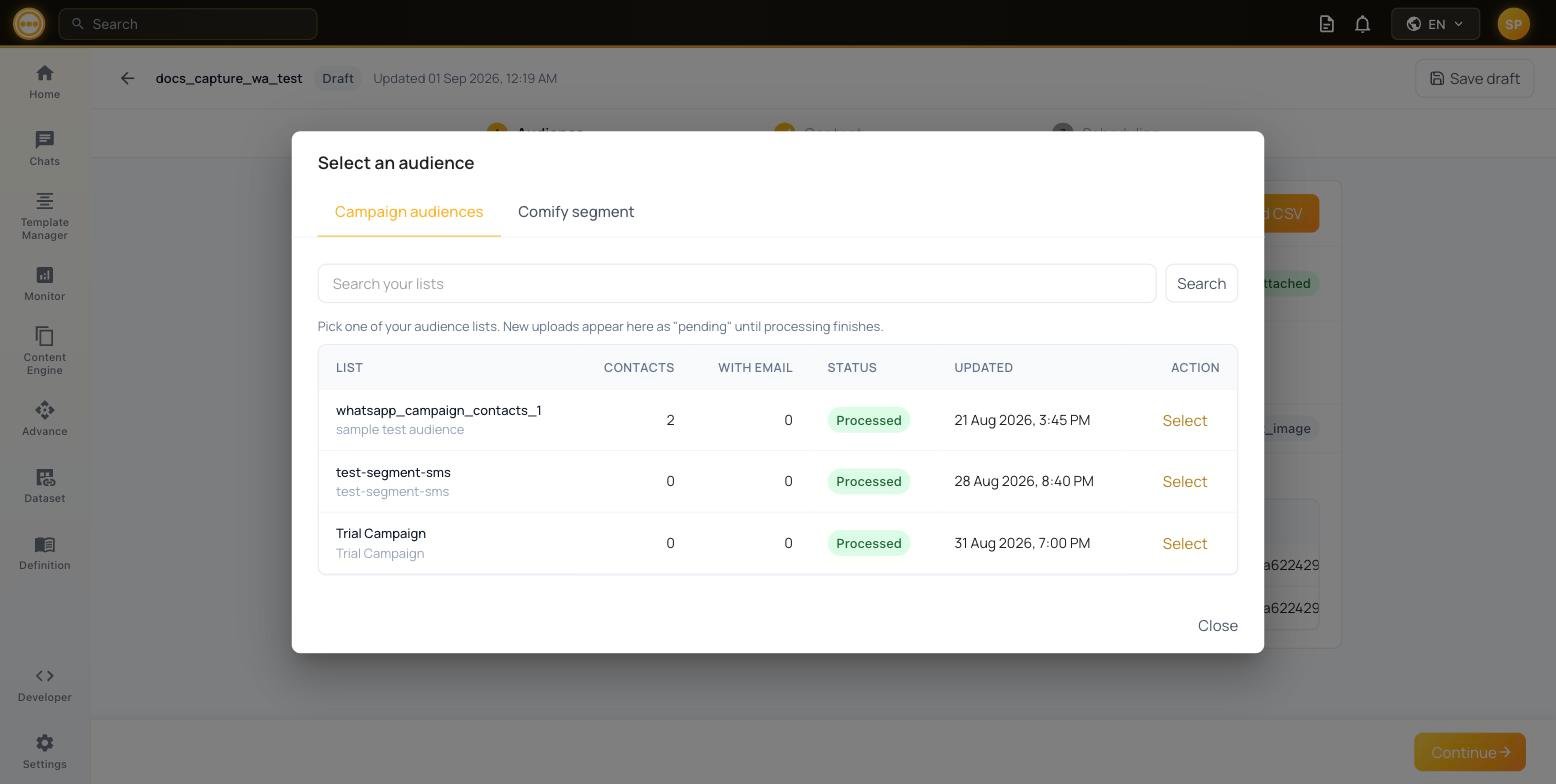
Click **Select existing** to open the audience picker, with two tabs:
| Tab | What it shows |
| ---------------------- | --------------------------------------------------------------------------------------------------------------------- |
| **Campaign audiences** | Lists you've uploaded or built from a rule, with Contacts, With Email, Status, and Updated. |
| **Comify segment** | Dynamic segments (built with **+ New**) that re-qualify members at send time — the member count shown is an estimate. |
Click **Select** next to the list you want.
## After attaching an audience
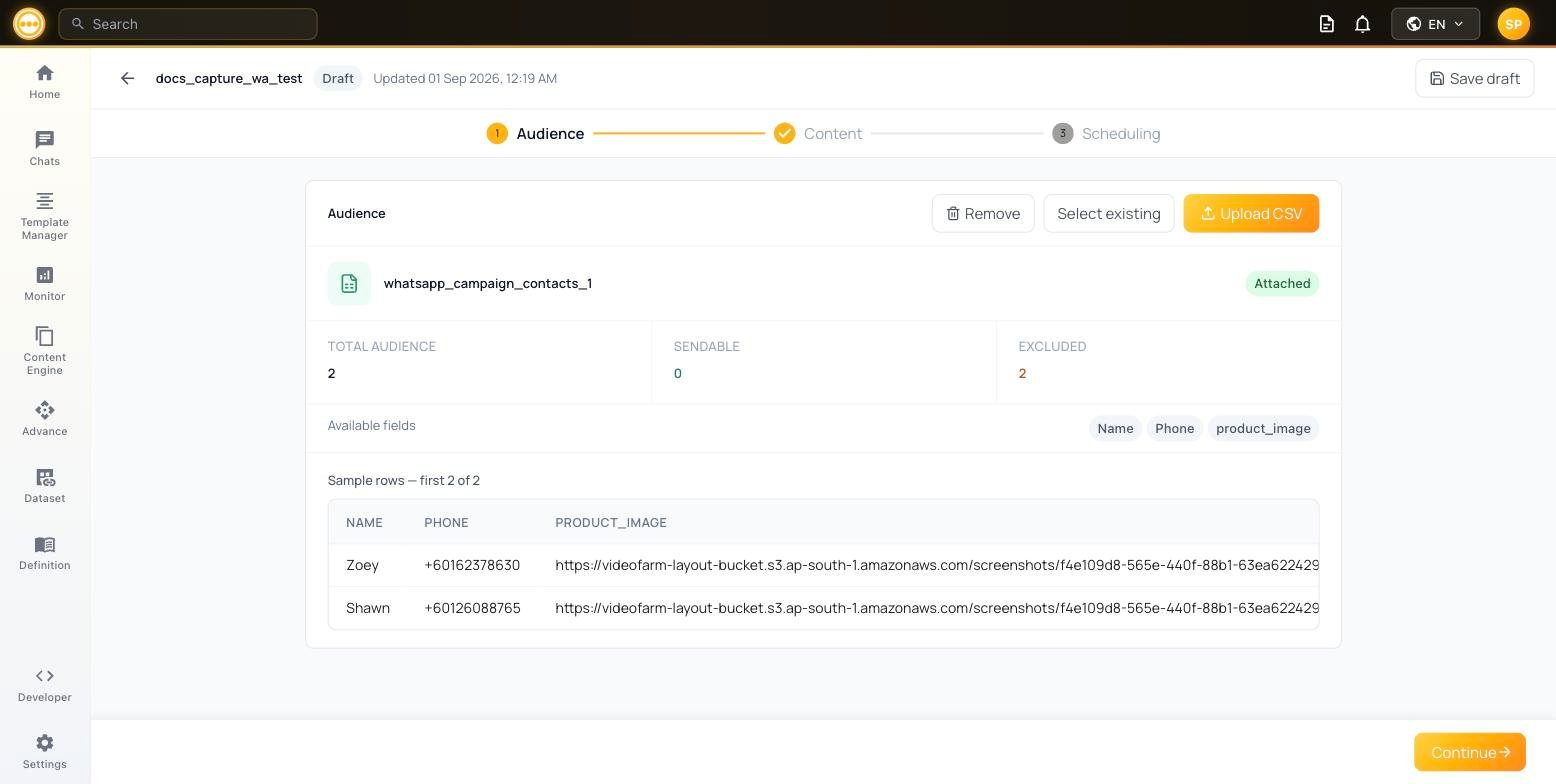
Once an audience is attached, Comify shows a summary of the list, its **Available fields**, and a sample of the first rows so you can verify the data before proceeding.
## Attaching an audience
Upload a new CSV file with your contacts. Rows are validated before the campaign launches. Each column in your CSV becomes an available field for variable mapping in the next step.
Pick from a previously uploaded audience list or a dynamic segment. New uploads appear as "pending" until processing completes.
### Selecting an existing list
Click **Select existing** to open the audience picker, with two tabs:
| Tab | What it shows |
| ---------------------- | --------------------------------------------------------------------------------------------------------------------- |
| **Campaign audiences** | Lists you've uploaded or built from a rule, with Contacts, With Email, Status, and Updated. |
| **Comify segment** | Dynamic segments (built with **+ New**) that re-qualify members at send time — the member count shown is an estimate. |
Click **Select** next to the list you want.
## After attaching an audience
Once an audience is attached, Comify shows a summary of the list, its **Available fields**, and a sample of the first rows so you can verify the data before proceeding.
 | Field | Description |
| ------------------ | ----------------------------------------------------------------------------- |
| **Total Audience** | Total number of contacts in the list |
| **Sendable** | Contacts with a valid, opted-in WhatsApp number who will receive the campaign |
| **Excluded** | Contacts skipped due to missing/invalid number, no opt-in, or suppression |
Contacts without a valid WhatsApp-registered number, or who haven't opted in, are automatically excluded from sends. See the [WhatsApp Business Policy](https://www.whatsapp.com/legal/business-policy/) for consent requirements.
## Next step
Once your audience is attached and the sendable count looks right, click **Continue** to move to [Content](/campaigns/whatsapp/content).
| Field | Description |
| ------------------ | ----------------------------------------------------------------------------- |
| **Total Audience** | Total number of contacts in the list |
| **Sendable** | Contacts with a valid, opted-in WhatsApp number who will receive the campaign |
| **Excluded** | Contacts skipped due to missing/invalid number, no opt-in, or suppression |
Contacts without a valid WhatsApp-registered number, or who haven't opted in, are automatically excluded from sends. See the [WhatsApp Business Policy](https://www.whatsapp.com/legal/business-policy/) for consent requirements.
## Next step
Once your audience is attached and the sendable count looks right, click **Continue** to move to [Content](/campaigns/whatsapp/content).