
Getting Started
From your Comify dashboard, navigate to Campaigns and click Create Campaign.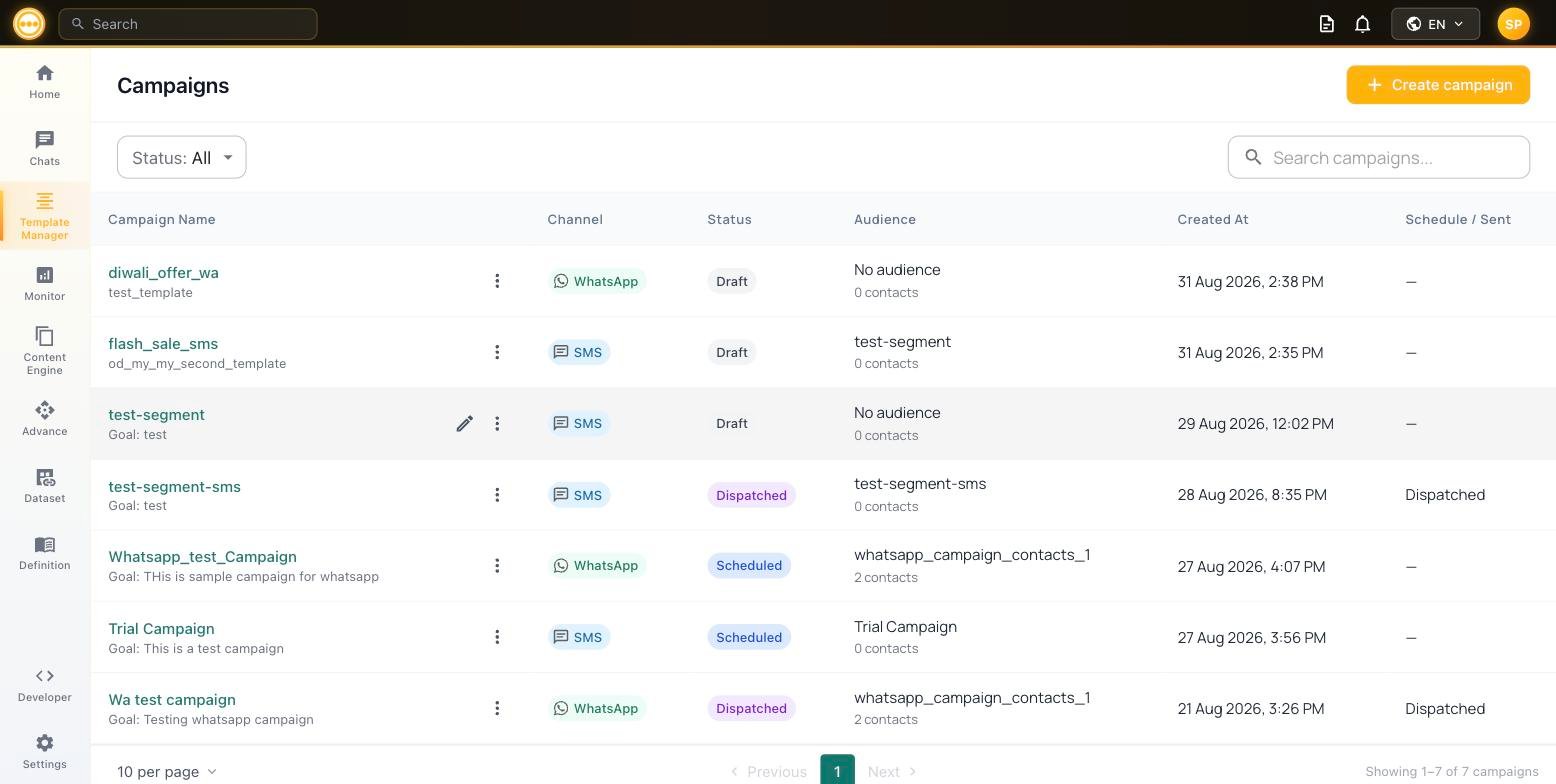
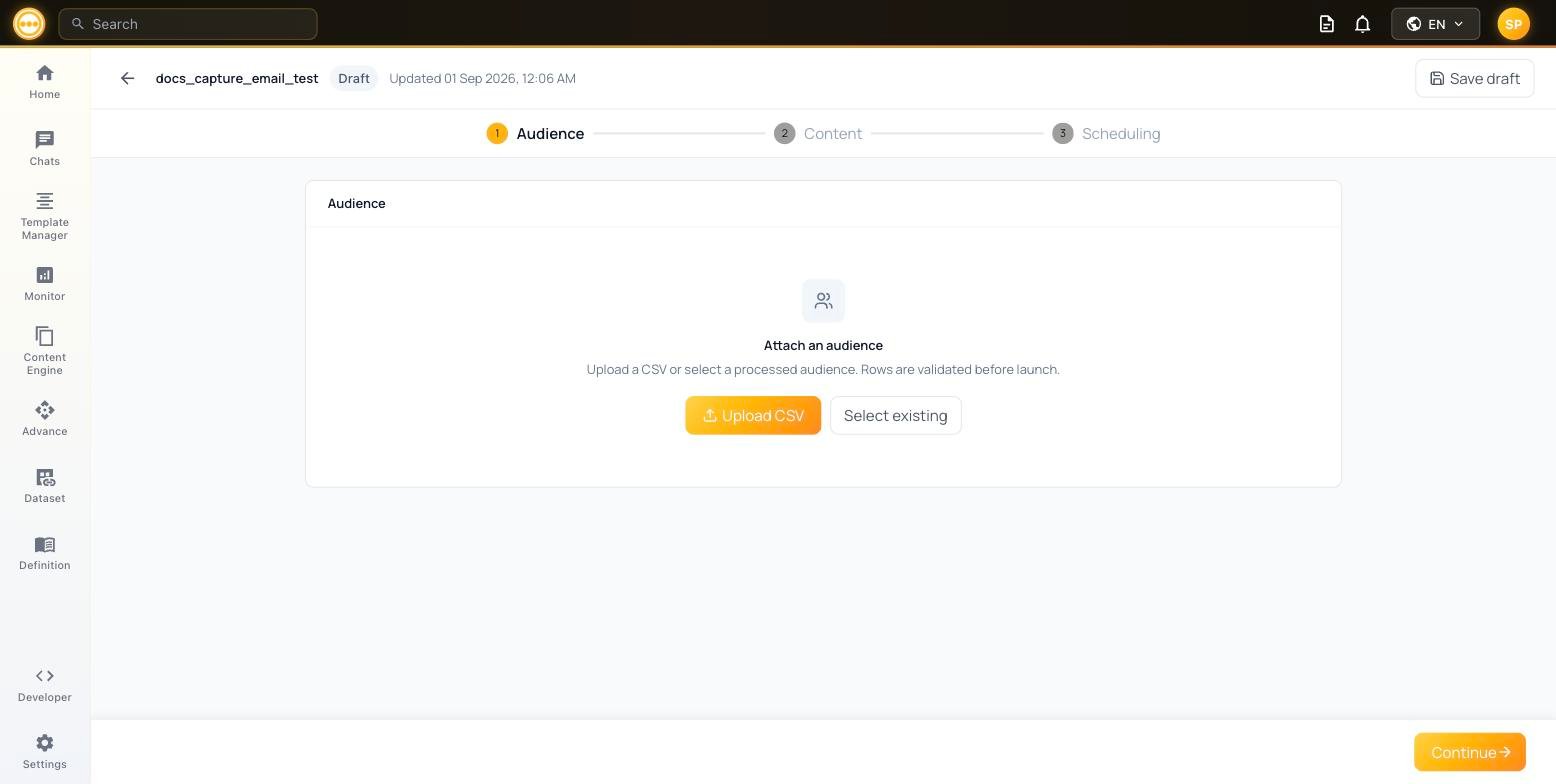
Attaching an Audience
Upload CSV
Upload a new CSV file with your contacts. Rows are validated before the campaign launches. Each column in your CSV becomes an available field for variable mapping later.
Select Existing
Pick from a previously uploaded audience list. New uploads appear as “pending” until processing completes.
Selecting an Existing List
Click Select existing to open the audience picker, with two tabs: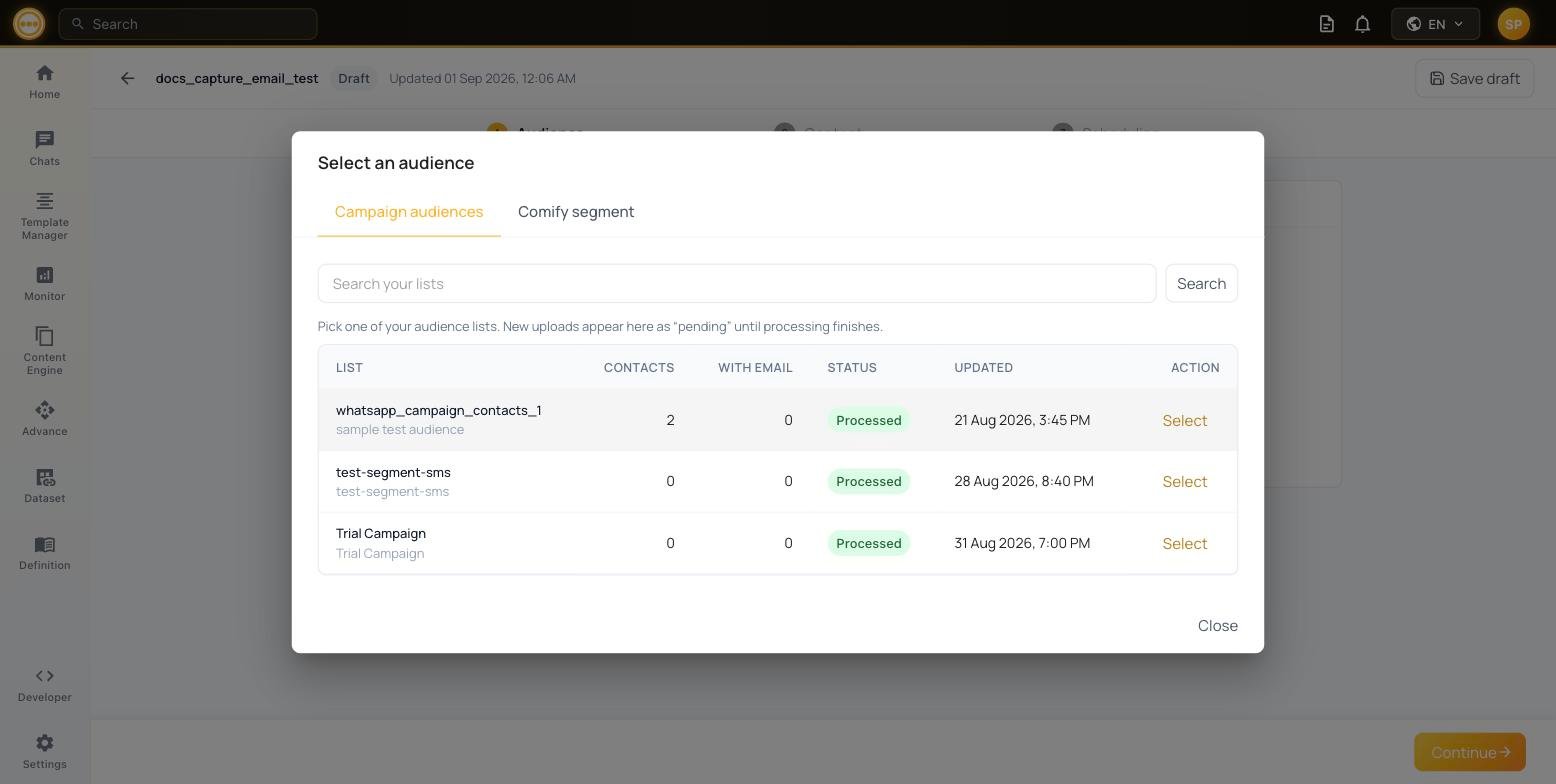
After Attaching an Audience
Once an audience is attached, Comify shows a summary of the list: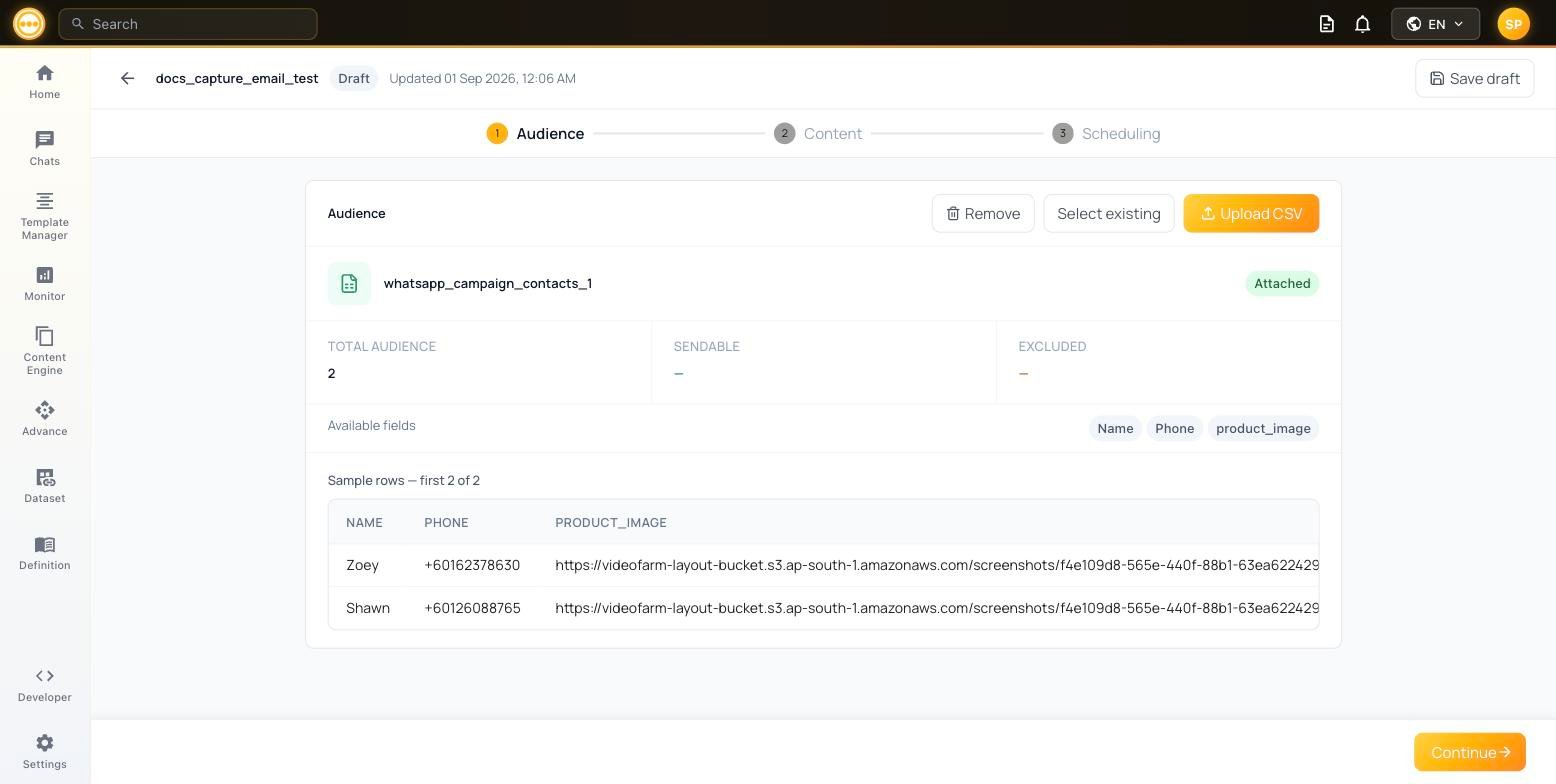
Below the summary you’ll see the Available fields from your CSV (e.g. name, email, phone, company, discount) — these are the columns you can map to template variables in the next step.
A sample of the first few rows is shown so you can verify the data looks correct before proceeding.