
Looking for the static, point-in-time option instead? See Lists. For a side-by-side comparison, see Create an Audience.
Create a segment
From Template Manager → Audience List, click + New audience → Segment.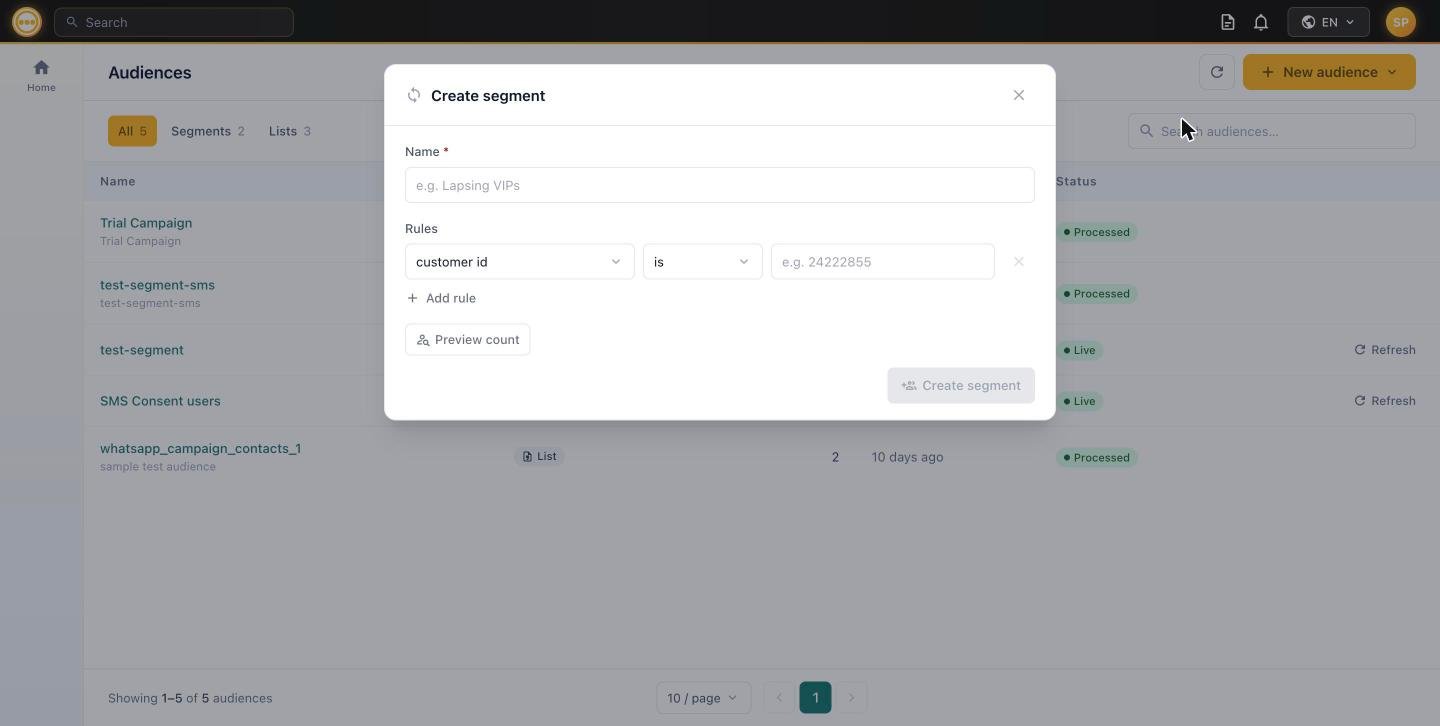
Create segment — rule builder
1
Name the segment
Give it a clear, descriptive name (e.g.
WhatsApp opted-in, Lapsing VIPs).2
Build your rule(s)
Each rule has three parts: a field, an operator, and a value. The operator and value input adapt automatically based on the field’s data type — see the rule reference below.Click + Add rule to add more conditions. Rules are combined with AND — a contact must match every rule to be included.
3
Preview count
Click Preview count to see how many current contacts match your rules before saving. This runs a live query against your customer data, so the number reflects who would qualify right now.
4
Create segment
Click Create segment. It’s saved as Live and starts evaluating membership automatically — no further action needed to keep it current.
Rule reference
Every rule is built from a field, an operator, and (depending on the operator) a value. The field determines which operators are available.Fields
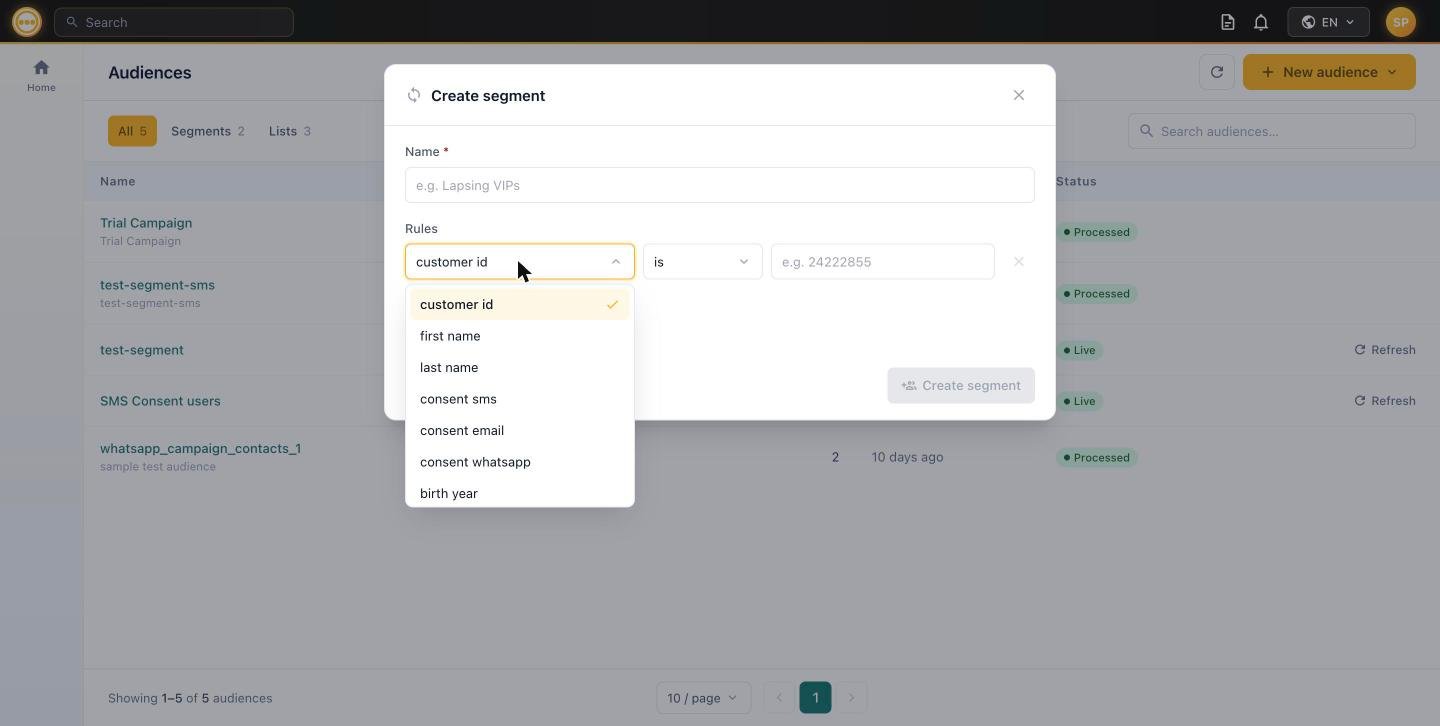
Field and operator dropdowns
Operators by field type
Text fields (customer id, first name, last name, email, phone, gender)
Text fields (customer id, first name, last name, email, phone, gender)
Boolean fields (consent email, consent sms, consent whatsapp)
Boolean fields (consent email, consent sms, consent whatsapp)
Number fields (birth year)
Number fields (birth year)
Multiple rules are always combined with AND. There’s no OR / “any of these rules” mode — to approximate an OR condition on the same field, use the
in operator on a Text field.Editing a segment
Unlike Lists, Segments stay editable indefinitely. Click any segment’s row in the Audiences list to reopen this same rule builder, pre-filled with its current rules — adjust them and save, and the segment re-evaluates against the new criteria going forward.Refreshing membership
Segment membership updates automatically, but you don’t have to wait for the next automatic pass. From the Audiences list, click Refresh on any Live segment’s row to re-qualify its membership on demand.Using a segment in a campaign
Segments are selectable from the Audience step of any campaign — Email, SMS, or WhatsApp — under Select existing → Comify segment.Next steps
- Need a fixed, point-in-time audience instead? See Lists.
- Create an Audience — Segment vs. List comparison.
- Create a campaign using this segment.